Signing in and selecting a project
Overview
Workbench uses Passport to sign you in. Every Workbench area works on one project at a time. You select the project in the title bar.
Figure: Sign-in and project selection flow

Signing in
Workbench has no sign-in page of its own. If you don't have a valid session, Workbench sends your browser to Passport to sign in.
When Workbench starts, it shows Checking session while it checks your session. It then shows Restoring project session while it reopens the project you last used.
Selecting a project
To select a project, do the following:
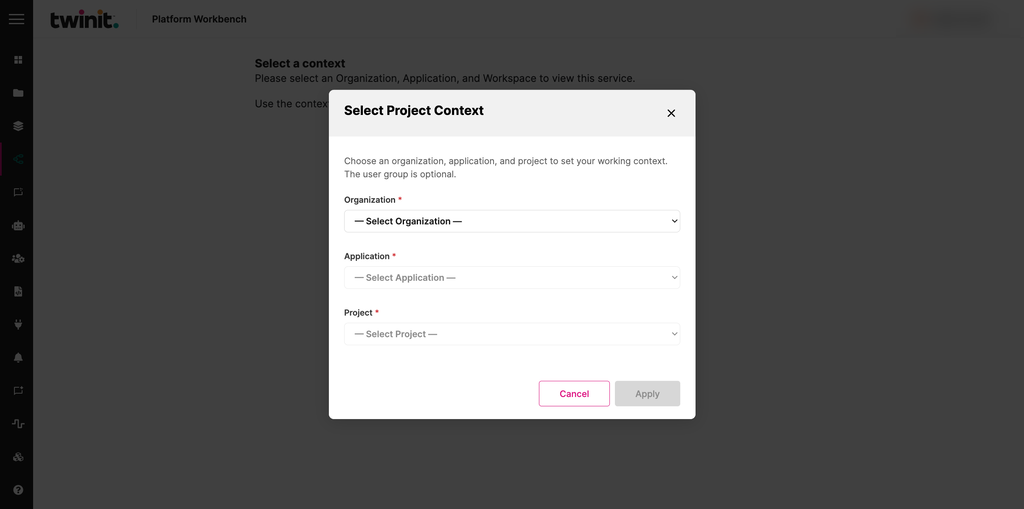
- In the title bar, select the organization, application, and project breadcrumb to open the Select Project Context dialog.
Note: On your first sign-in, Workbench opens this dialog for you.
- In the Organization list, select an organization.
- In the Application list, select an application.
- In the Project list, select a project.
- If the project has user groups, the User Group list appears. Select a group, or leave — None —.
- Select Apply.
Workbench switches to the project and opens the Dashboard. If the switch fails, the selector stays open.
Note: Project pages aren't available until you select a project.
Figure: Select Project Context dialog
Creating a bare project
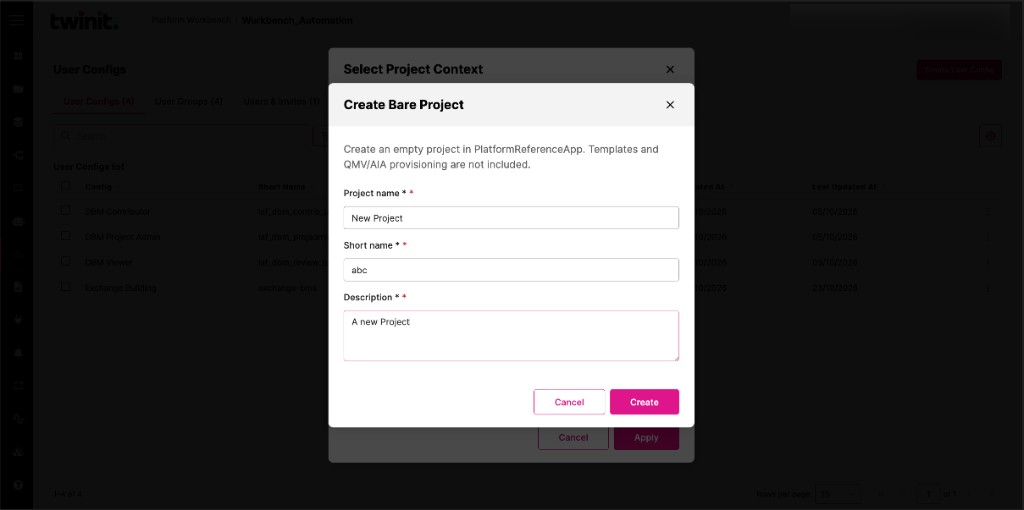
A bare project is an empty project. Workbench doesn't add templates, scripts, permissions, data sources, or groups to it.
Note: Workbench shows this option only when your Workbench deployment enables it.
To create a bare project, do the following:
- Open Select Project Context.
- Select an Organization and an Application.
- Select Create project.
- In Create Bare Project, enter a Project name, a Short name, and a Description.
- Select Create.
Workbench then applies the new project in the same way as selecting a project.
Figure: Create a bare project dialog
Project selection limits
- The selector lists up to 100 entries at each level. If there are more, Workbench shows an error.
- If you change the Organization or Application, Workbench stops loading the lower levels for the previous choice.
Managing user groups
You manage user groups on the User Groups tab of the User configs area. For more information, see User configs.