Scripts
Overview
Use the Scripts area to write, version, and run the project's scripts in your browser. For more information about scripts, see Script content.
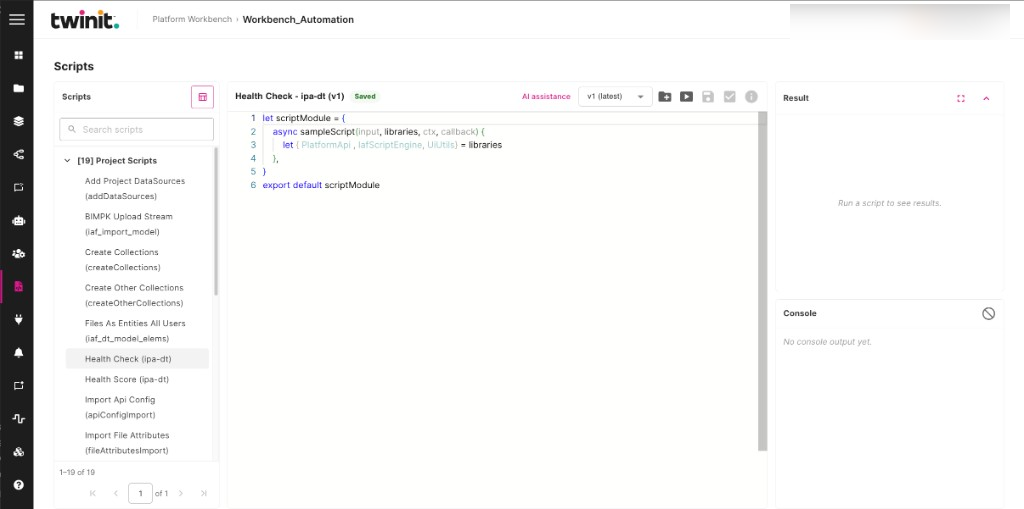
The Scripts area has the following parts:
- A script tree that lists the project's scripts
- A code editor
Figure: Scripts page
Managing scripts
In the script tree, you can do the following:
- Select New Script to create a script.
- Select a script to open it.
- Open a script's menu and select Rename or Delete.
- Select more than one script, then select Bulk Delete. Confirm with Delete.
- In Script version, choose the version to edit. The latest version is marked (latest).
Script Explanation describes the open script. It doesn't change the script. Code Assistance is separate. For more information, see Using Code Assistance.
If the project has no scripts, the tree shows No scripts found.
Running a script
To run a script, do the following:
- Open the script.
- Select Run Script.
- Review the results.
The Result panel shows the returned data. The Console panel shows the script's output. The editor marks the lines with errors.
Note: Scripts run in your browser.
Saving and versioning a script
To save and version a script, do the following:
- Select Save File.
- Select Commit Script.
- Select Commit to current version or Commit to new version.
- Select Commit.
You can also view a script's versions and delete versions where you have permission.
Using Code Assistance
Code Assistance uses AI to suggest a replacement for your script.
To use Code Assistance, do the following:
- Select AI assistance.
- Approve sending your current script to the AI.
- Review the suggested replacement. Workbench doesn't change your script yet.
- Select Accept into editor to apply the suggestion.
If you change the script while the AI is generating, Workbench rejects the suggestion. If Workbench can't tell whether the request succeeded, it tells you instead of retrying.
Code Assistance shows a separate message for each of the following:
- You aren't signed in.
- You don't have permission.
- Your requests are being throttled.
- The request failed.
- The result of the request is unclear.