Platform Workbench
Overview
Workbench is the browser application for administering a project. Use it to explore project data, author ontologies, run workflows, configure AI resources, write scripts, and manage platform content.
Workbench calls services directly from your browser. Everything you do in Workbench applies to the project you select in the title bar.
Figure: Workbench system context

Workbench layout
The Workbench window has the following parts:
- Title bar: shows the organization, application, and project. Select that breadcrumb to open Select Project Context. For more information, see Signing in and selecting a project.
- Account menu: to open it, select your name at the right of the title bar. From the menu, you can open your Platform account or select Logout to sign out.
- Left navigation: opens each Workbench area. The Help item is at the bottom of the navigation.
- Main content area: shows the area you open.
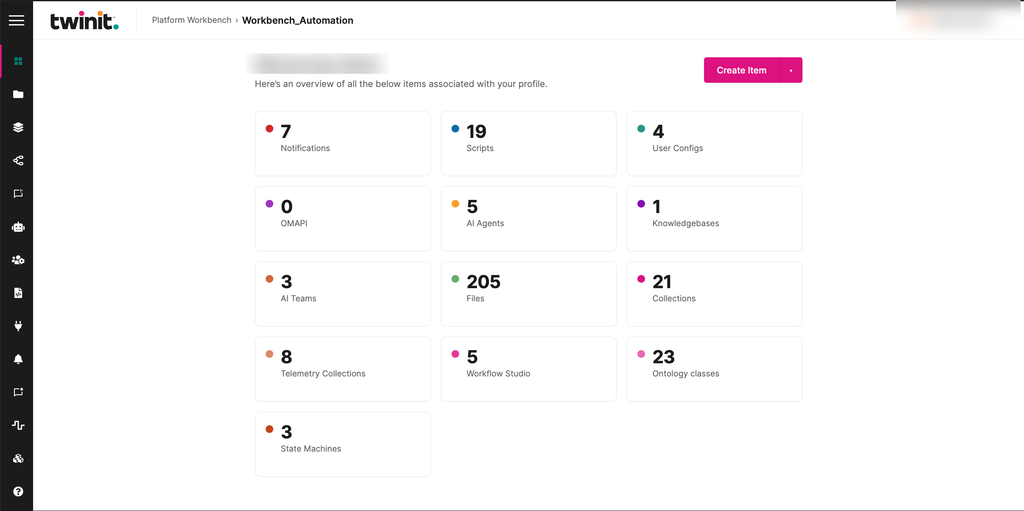
When you apply a project, Workbench opens the Dashboard.
Figure: Workbench main page
Workbench areas
Workbench has the following areas:
- Dashboard: shows item counts for each area of the project.
- Files: browse, upload, and manage project files and folders.
- Collections: browse and manage item collections and their relationships.
- Ontology Studio: author, version, and deploy the application ontology.
- Workflow Studio: create, run, and schedule workflows.
- AI Service: configure agents, teams, knowledge bases, MCP tools and servers, prompt templates, and providers.
- AI Chat: chat with an AI team.
- User configs: manage user configs, user groups, users, and invitations.
- Scripts: write, version, and run project scripts.
- OMAPI: manage Object Model API configurations.
- Notifications: inspect notification resources and register devices.
- Telemetry: manage telemetry collections and configurations, and search telemetry readings.
- Graphic models: view the project's graphic models.
Permissions
The services decide what you can do in Workbench. Workbench hides or disables some actions it knows you can't perform. If a service denies a request, Workbench shows the error.
Lists and paging
Workbench loads lists one bounded page at a time. A loaded page doesn't always contain every item in the project. Searches and filters on most pages apply only to the items currently loaded.
Loading and errors
Larger areas load the first time you open them. If an area fails to load, Workbench shows an alert with a Retry button. Most lists also show Retry when a read fails.
If you open a page that no longer exists, Workbench shows an unavailable-page message.
Changes and retries
Workbench doesn't retry a failed change automatically. If Workbench can't tell whether a change was saved, it reads the item again to check before you try again.
Workbench doesn't sync data between browsers in real time.